How to import your ThriveCart products into Swipefast
Create a ThriveCart API key, paste it into Swipefast, pick your products, and they arrive as drafts with their order bumps. Nothing in ThriveCart changes.
 Jacob PegsFounder of Swipefast
Swipefast can bring your ThriveCart products across for you: names, prices, billing and their order bumps, as drafts you check before anything goes live. It takes a few minutes, and it only ever reads from ThriveCart. Nothing there changes, and your old checkouts keep working until you switch your links.
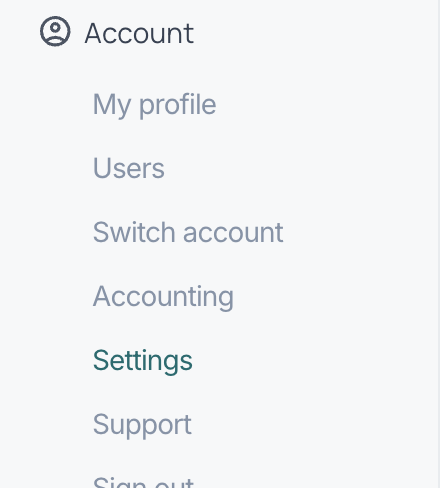
1. Open your ThriveCart settings
In ThriveCart, open the Account menu on the left and choose Settings.
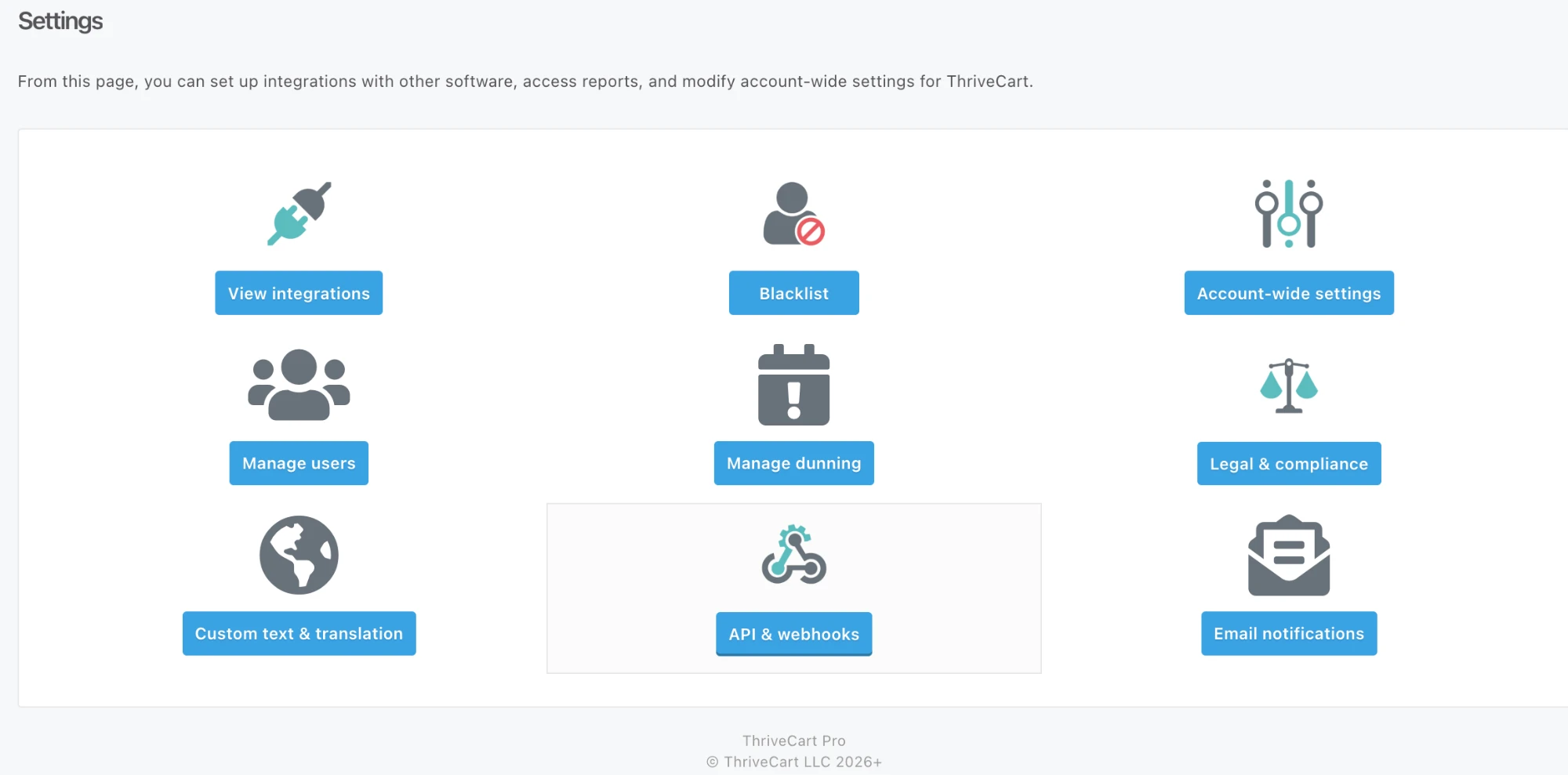
2. Go to API & webhooks
On the Settings page, click API & webhooks.
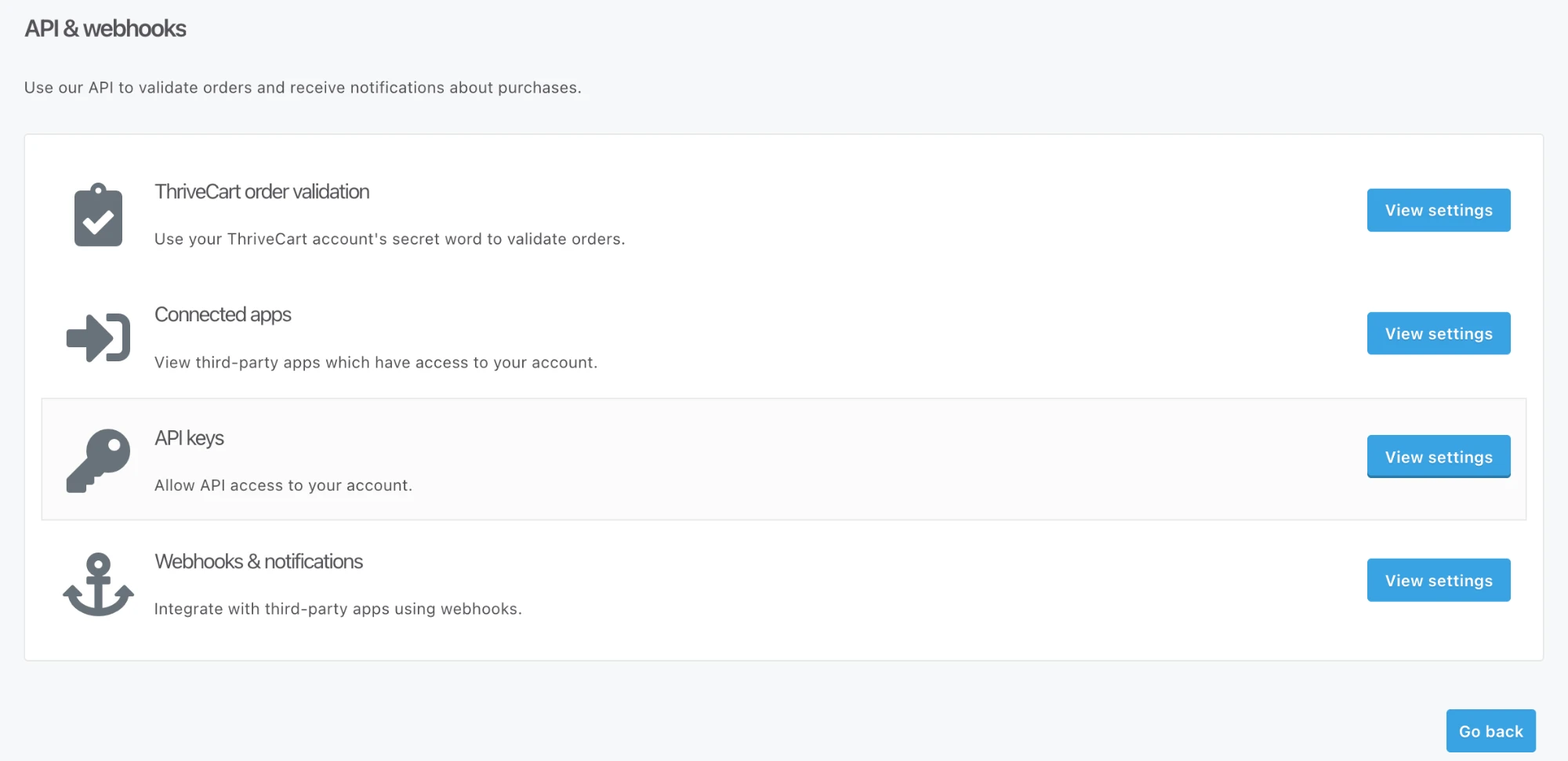
3. Open API keys
Next to API keys, click View settings.
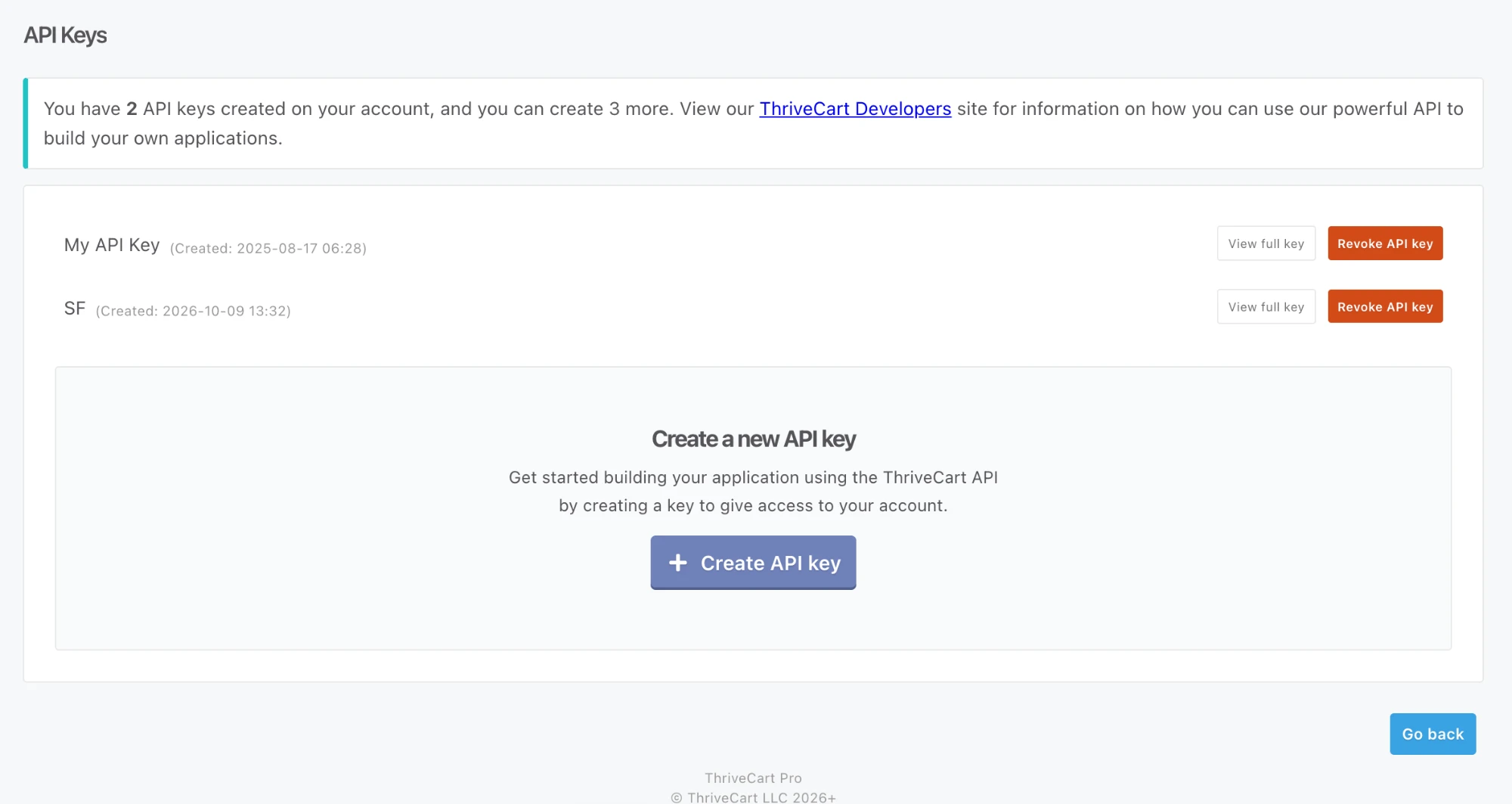
4. Create a key for Swipefast
Click Create API key and name it Swipefast, so you can find it later. Then click View full key and copy it.
5. Paste it into Swipefast
Log in to Swipefast and go to swipefast.io/dashboard/import. Paste the key and click Scan my ThriveCart. Swipefast uses the key for this one scan and doesn't save it.
6. Pick what to bring across
You'll see every ThriveCart product with its price, its billing (one-time, monthly or yearly) and its order bumps. Nothing is ticked to start with. Tick the ones you want, check each price against ThriveCart, then click Import.
- Each product becomes a draft checkout, with its order bumps.
- It keeps its address where it can: boardroom.thrivecart.com/go becomes yourstore.swipefast.io/go.
- Running the import again never makes duplicates. Products you've already brought across are marked.
7. Finish each draft
- Add the delivery links, for the product and each order bump. ThriveCart doesn't share them, so Swipefast won't publish until they're in.
- Rebuild your page: next to each draft there's a prompt to copy into Claude or ChatGPT, which reads your old ThriveCart page and rebuilds it above your new checkout, in your words.
- Preview it, then publish.
8. Switch your links
The import shows every old ThriveCart link next to its new Swipefast one. Update the buttons on your site, your emails and your bio. New sales then come through Swipefast.
What stays in ThriveCart
- Active subscriptions and payment plans keep billing in ThriveCart until they end. Nothing is cancelled.
- Coupons, customers and order history aren't imported: ThriveCart's API doesn't offer coupons or a customer list.
- Upsells are listed by name, but ThriveCart doesn't say which checkout each belongs to, so add them in the editor.
Questions people ask before choosing
Can the import change anything in ThriveCart?
No. It only reads: it can't change, cancel or refund anything, and the key isn't saved.
What about my subscribers?
They keep paying in ThriveCart until their subscriptions end. New buyers sign up through Swipefast once you switch your links.
Can I import again later?
Yes. Products already imported are skipped and marked, so you can bring the rest across whenever you like.