How to set up your link in bio page
Set up one link in bio page in Swipefast: your photo, bio and social links, your checkouts as cards with a Get it button, and any other links you want.
 Jacob PegsFounder of Swipefast
A link in bio page is one page for the single link in your social bio. In Swipefast it lives at yourstore.swipefast.io/links, and on your own domain too if you've connected one. Your checkouts show as cards with their price and a Get it button. It's on every plan, Starter included. The feature in short: swipefast.io/link-in-bio
How do I set up my link in bio page?
- 1. In the sidebar, under Sell, open Link in bio.
- 2. Under Profile, add a Photo. Paste an https:// link to an image, or leave it empty to use your account photo.
- 3. Type your Name and a short Bio. The bio holds up to 280 characters.
- 4. Open Social profiles and paste the full address of each profile you want to show. You can add Instagram, TikTok, YouTube, X, Threads, LinkedIn, Facebook, Bluesky, Substack, GitHub, your website and your email.
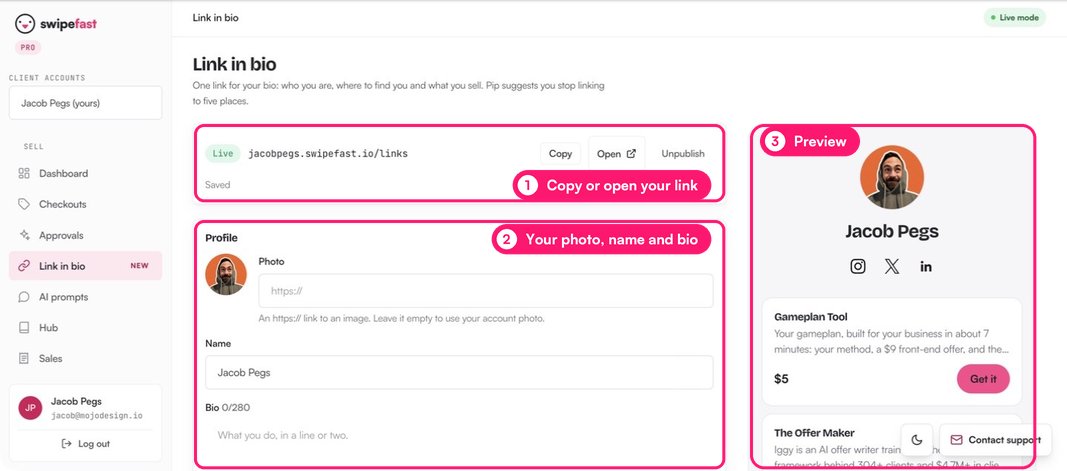
Changes save on their own as you type. The preview beside the editor shows the page at phone size, so you see what people will see.
How do I add my checkouts and links?
- 1. Under Checkouts, tick the checkouts to show, up to 12. A draft only shows once it's live.
- 2. Use the arrows to change their order. Put your best seller first.
- 3. Under Links, click Add link. Give it a Title, such as My newsletter, and an Address. An address can start with https://, http:// or mailto:.
- 4. Add up to 20 links. Use the arrows to move one, or × to remove it.
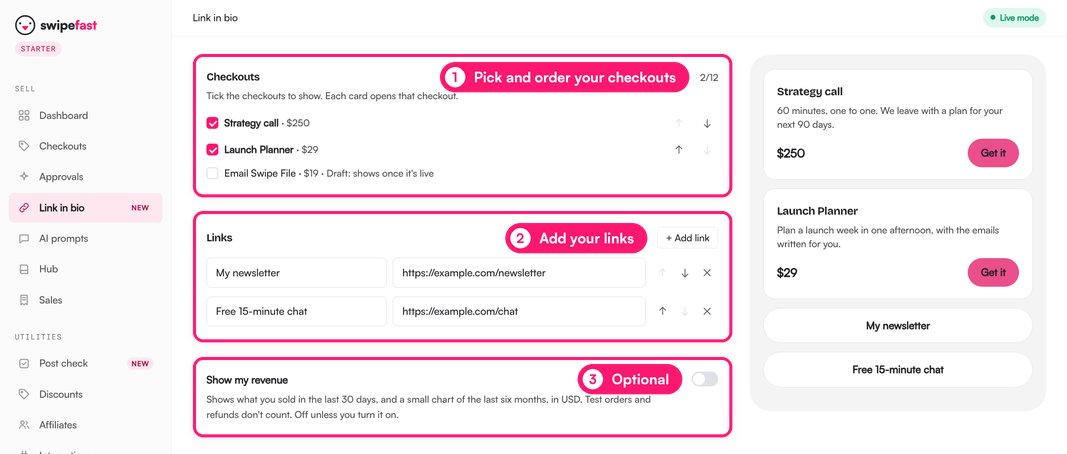
On the page, your checkout cards come first and your links sit under them.
How do I publish it and put it in my bio?
- 1. At the top of the editor, click Publish. The label turns to Live.
- 2. Click Copy to copy your address, or Open to see the live page.
- 3. Paste the address into your Instagram, TikTok, X or LinkedIn bio.
To take the page down, click Unpublish. It shows a not found page until you publish it again. The address stays the same, so you never need to change your bio.
What do buyers see?
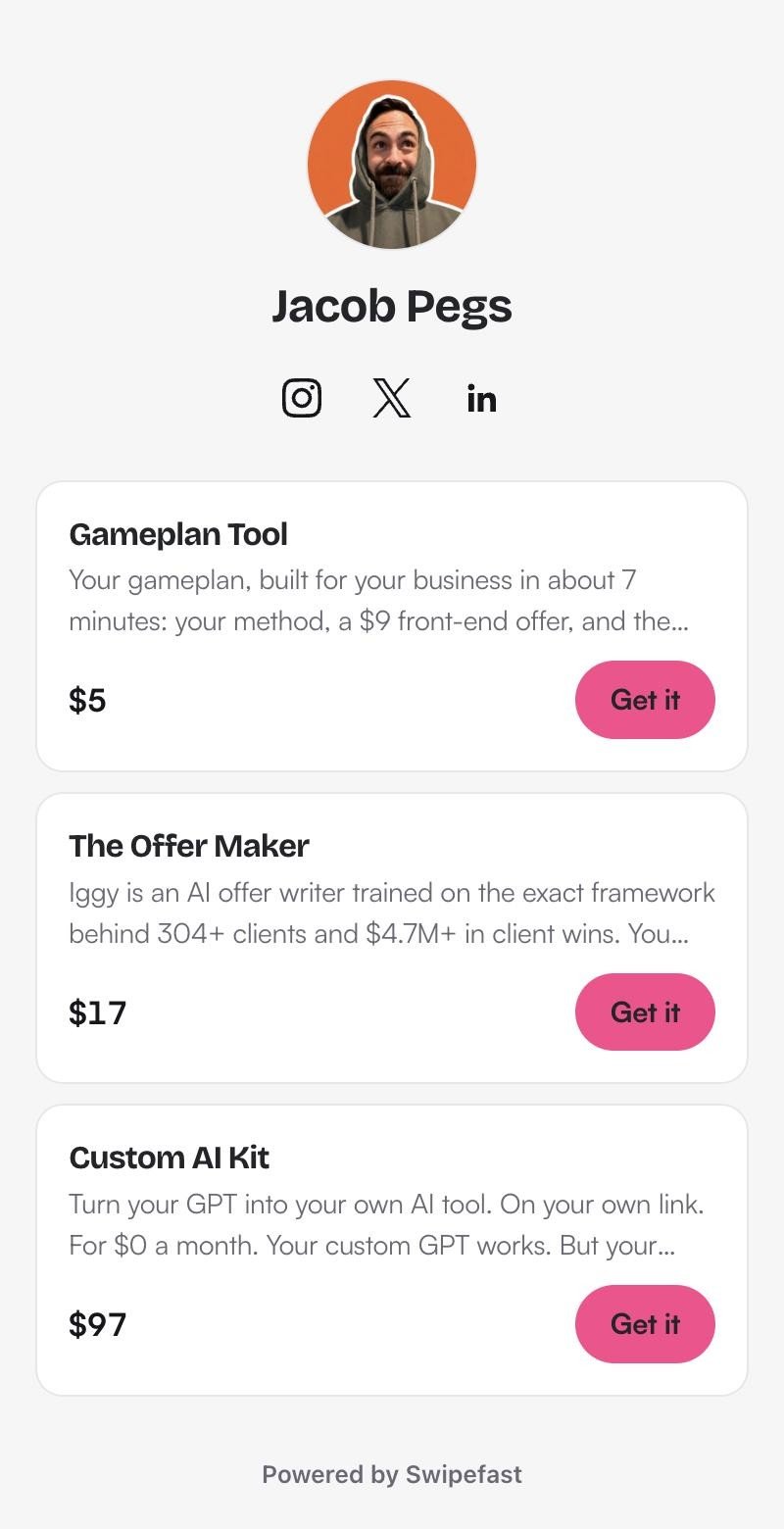
Your photo, name, bio and social icons at the top. Then a card for each checkout, with its name, a line about it, the price and a Get it button. Get it opens that checkout, with its order bumps and upsells. Your links come next, and Powered by Swipefast sits at the bottom.
Should I show my revenue?
Only if it helps. Switch on Show my revenue and the page shows what you sold in the last 30 days as an amount per month, plus a small chart of the last six months. It counts real sales only: test orders and refunds don't count. It's off unless you switch it on. If your numbers are still small, leave it off. The page sells fine without it.
Can my AI set it up for me?
Yes. Connect Swipefast to Claude or ChatGPT once, then ask in plain words. For example:
Open the Claude or Codex prompt
Set up my link in bio: a short bio, my newsletter and booking links, and my best seller first.Your AI fills in the page and you check it in the editor. Publishing, unpublishing and showing your revenue stay your clicks.
Selling calls? Add the call as a checkout and buyers pick a time while they pay. Here's how: swipefast.io/blog/sell-a-booked-call-in-swipefast
Questions people ask before choosing
Where does my link in bio page live?
At yourstore.swipefast.io/links, where yourstore is your store name. If you've connected your own domain, the page works there too.
Which plans include it?
Every plan, Starter included.
Can buyers pay on the links page itself?
No. Each card opens its own checkout, with your order bumps and upsells, so buyers pay there.
Why doesn't my checkout show on the page?
Only live checkouts show. Tick it under Checkouts, then publish the checkout, and its card appears.
How many links and checkouts can I add?
Up to 20 links and 12 checkouts, plus your social profiles.