How to sell a call buyers book while they pay
Sell a paid call in Swipefast: connect Google Calendar, set your hours, and buyers pick a time and pay in one step. The call lands on your calendar.
 Jacob PegsFounder of Swipefast
Booking puts your open times inside the checkout. The buyer picks a time, then pays on the same page. There's no separate scheduling link and no "which day works for you?" emails. It works on one-time prices and payment plans, on every plan. The feature in short: swipefast.io/calendar-booking
Step 1: How do I connect Google Calendar?
- 1. In the sidebar, under Utilities, open Integrations.
- 2. Find Google Calendar, under Calendar, and open it.
- 3. Click Connect Google Calendar and sign in to Google.
- 4. On Google's screen, leave both calendar boxes ticked and allow access.
- 5. Back in Swipefast, the panel says Ready for bookings.
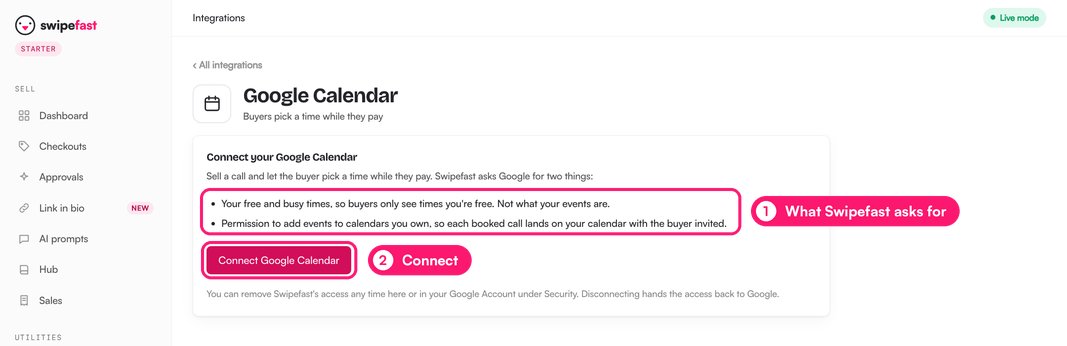
Swipefast asks Google for two things. It reads your free and busy times, not what your events are. And it adds each booked call to a calendar you own, with the buyer invited.
Step 2: How do I make a checkout bookable?
Start a new checkout, or add booking to one you already have.
- 1. Open Checkouts and click New checkout.
- 2. Name it, such as Strategy call, and click Continue.
- 3. On What does it cost?, enter the price and choose A booked call.
- 4. Pick the call length: 30, 45, 60 or 90 minutes.
- 5. Answer the last questions and click Create checkout. Then set your hours in the editor.
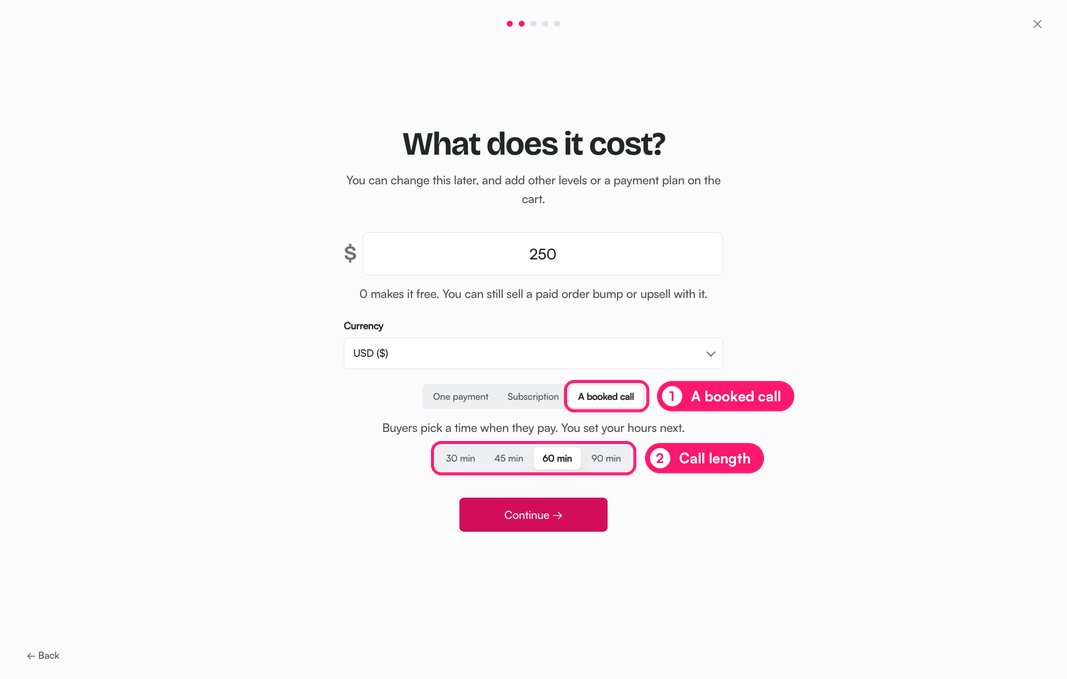
Already selling a call? Open the checkout in the editor. Under Add to this checkout, click Booking. It works on one-time prices and payment plans. It doesn't work on subscriptions or on Lemon Squeezy checkouts.
Step 3: How do I set my hours?
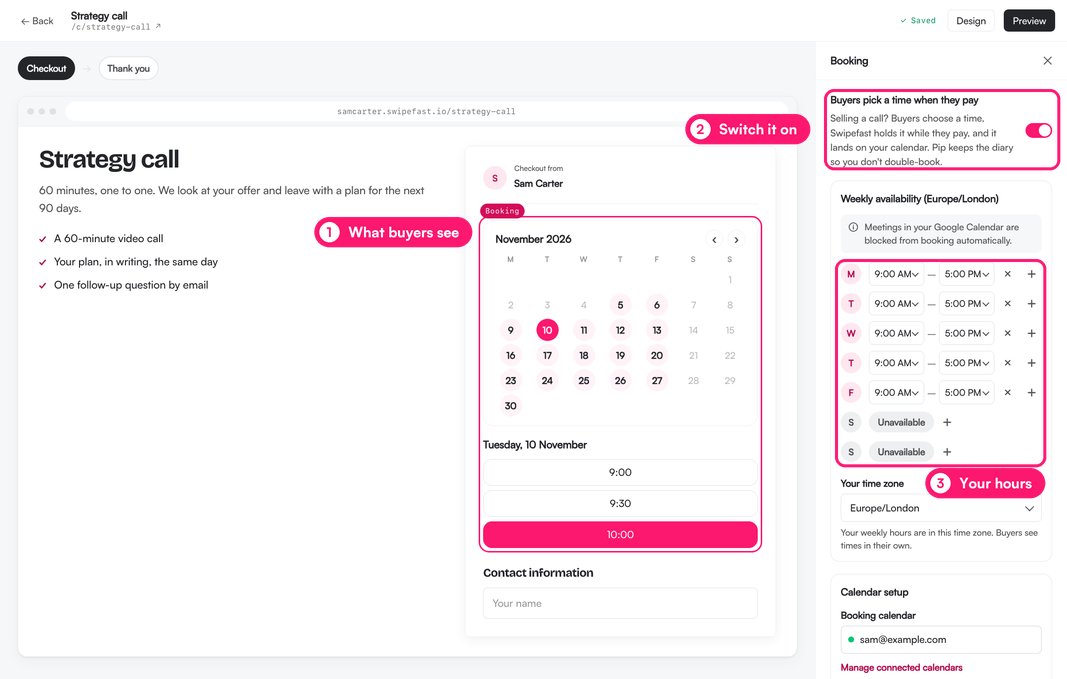
In the editor, click the Booking block in the checkout. Its panel opens on the right. Check that Buyers pick a time when they pay is switched on, then set your week.
- Weekly availability: each day has its hours, such as 9:00 AM to 5:00 PM. Click × to close a day, or + to open a day marked Unavailable or add a second time range.
- Your time zone: your hours are in this zone. Buyers see your times in theirs.
Further down the panel are the rest of the settings:
- Booking calendar: the Google Calendar your calls go to.
- Call length: how long each call is.
- Booking window: how far ahead people can book, such as 30 days.
- Lead time: the least notice you get, such as 1 day.
- Start time increment: how often calls can start, such as every 30 minutes.
- Buffer time: a gap around each call, such as 15 minutes.
- Show spots left this week: the checkout says how many times are still free this week. Real numbers only.
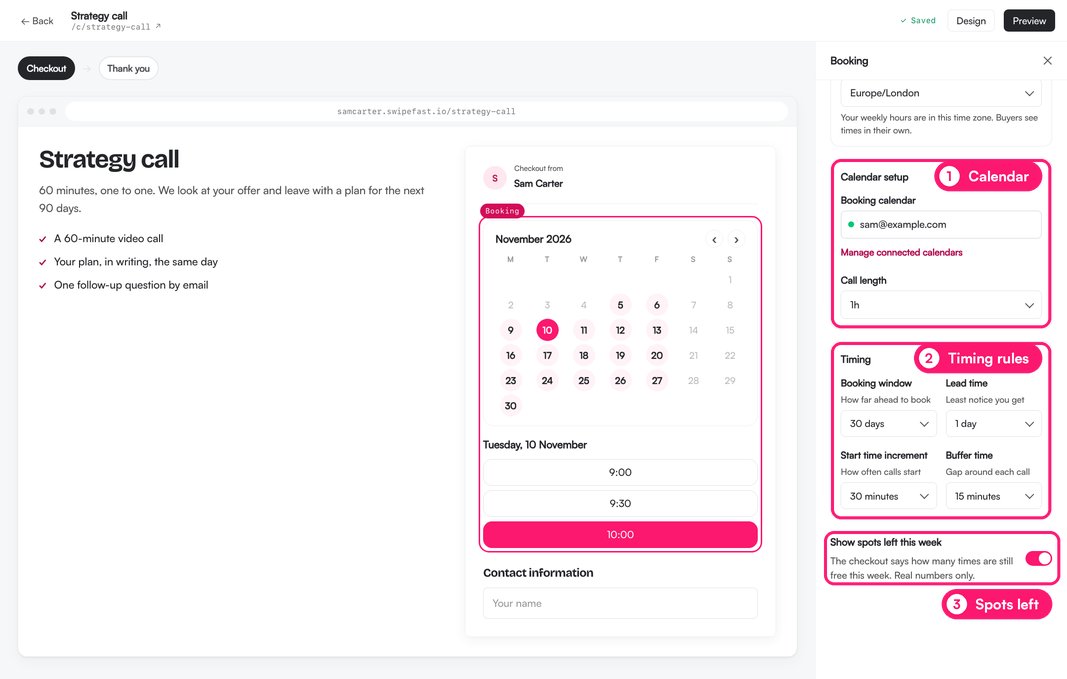
Changes save on their own. Then publish the checkout as usual.
What does the buyer see?
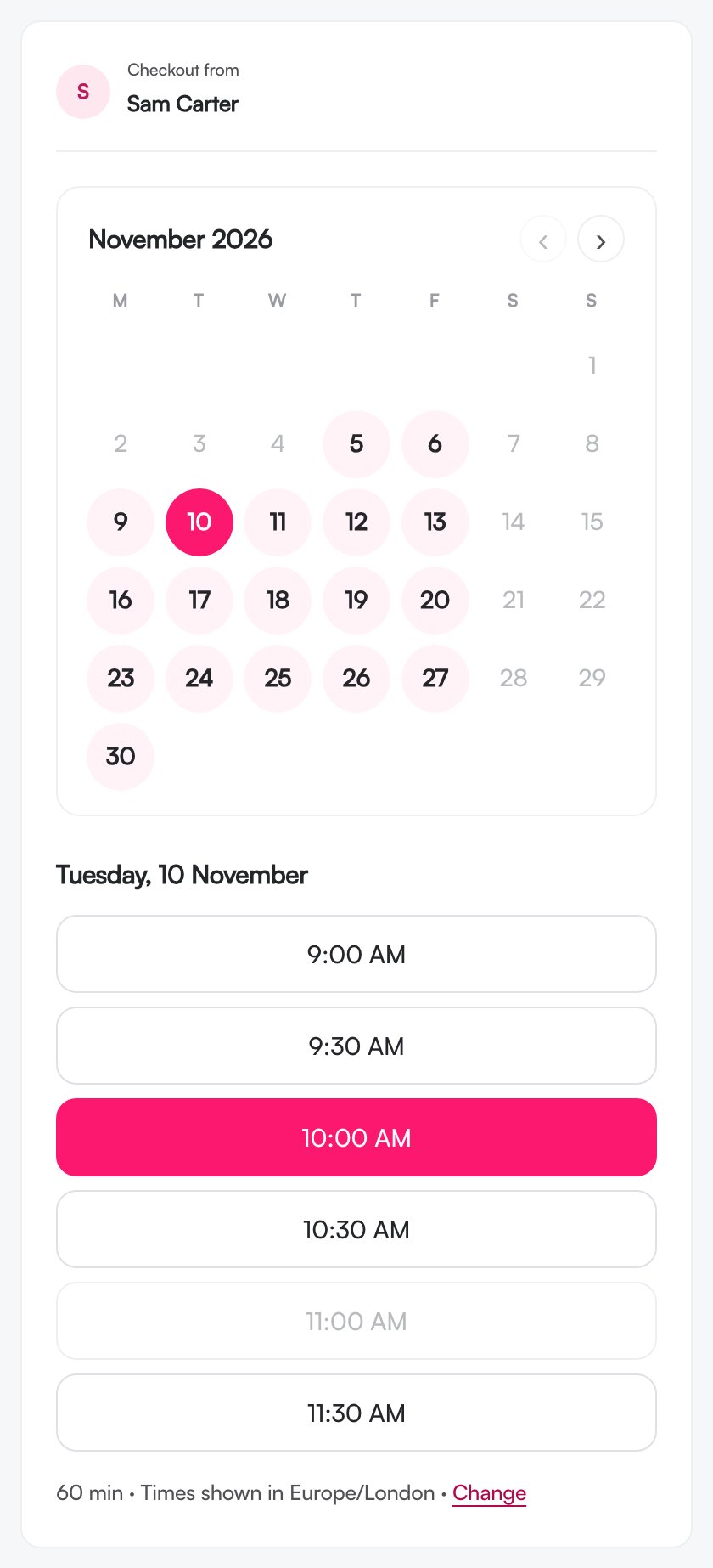
- A month calendar. They pick a day on the calendar, then a time. Days with open times stand out, and the arrows move between months.
- The times for that day, in a list. Times that are taken or too soon are greyed out.
- Times in their own time zone. They can click Change to pick another.
- Their time in the order summary, and a button that reads Book & Pay with the price.
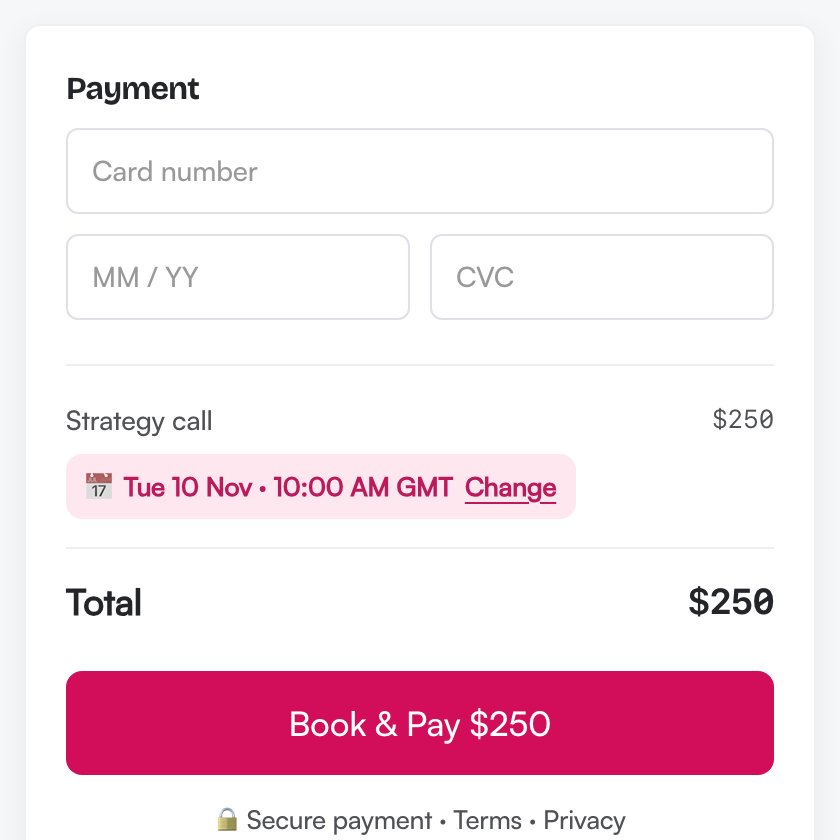
When the buyer clicks Book & Pay, their time is held for 15 minutes while they pay, so nobody else can take it. Busy times in your Google Calendar and calls already booked never show as open.
What happens after they pay?
- The call goes on your Google Calendar with the buyer invited. Google emails you both.
- The invite has a Google Meet link.
- The receipt and the thank-you page show Your call: and the time.
- Your sale alert shows the time too.
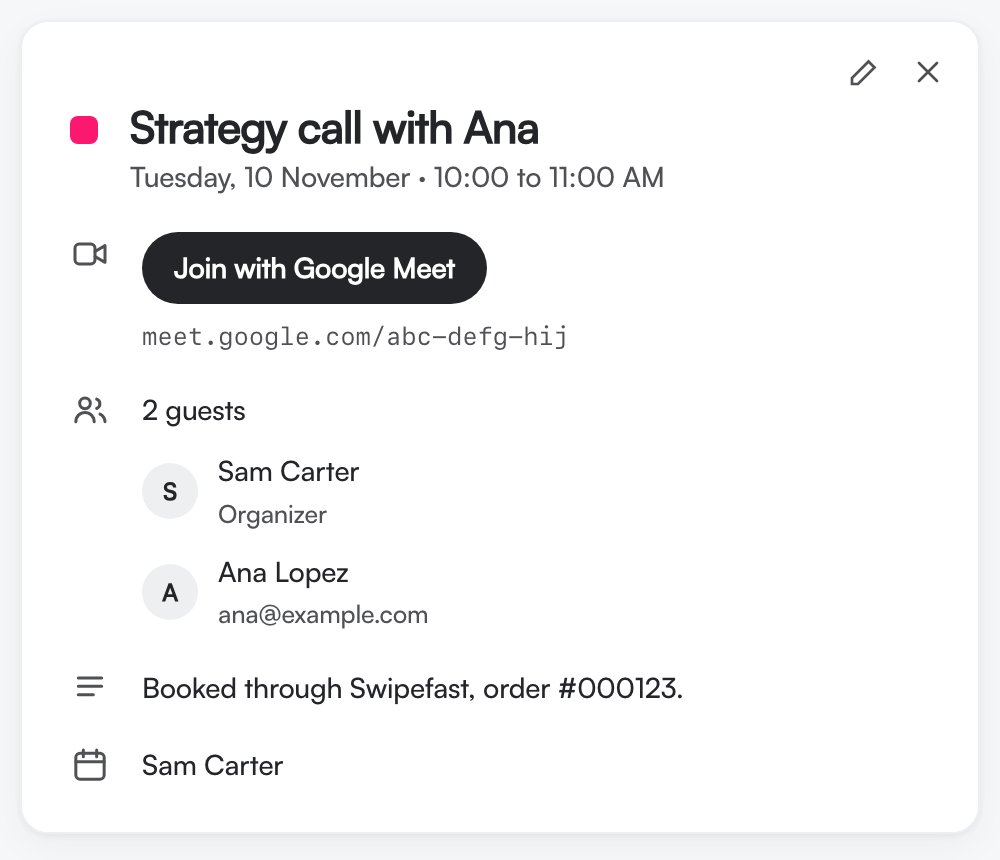
Need to cancel? Refund the order and the booking is cancelled, and the event comes off your calendar. Our refund guide shows how: swipefast.io/blog/refund-an-order-in-swipefast
Can my AI set it up?
Yes, once you've connected Swipefast to Claude or ChatGPT. Connect Google Calendar yourself first, then ask:
Open the Claude or Codex prompt
Make my strategy call bookable, 60 minutes, weekdays 9 to 5 Europe/London, 15 minutes between calls.How do I test it?
Book a time on your own checkout in test mode. Practice bookings go on your calendar only, so nobody else gets an invite. Then put the checkout on your link in bio page, so people can book from your social bio: swipefast.io/blog/link-in-bio-in-swipefast
Questions people ask before choosing
Which calendar does booking use?
Google Calendar. Connect it once in Integrations, and each booked call lands there with the buyer invited.
What does Swipefast see in my Google Calendar?
Only your free and busy times, not your event details. It uses them to hide the times you're busy, and it adds each booked call to a calendar you own.
Can two people book the same time?
No. While a buyer pays, their time is held for 15 minutes. Busy times and calls already booked never show as open.
Which time zone do buyers see?
Their own. You set your hours in your time zone, and buyers can change the zone they see with Change.
Can I sell a subscription with a booked call?
No. Booking works on one-time prices and payment plans, not subscriptions, and not on Lemon Squeezy checkouts.
Which plans include booking?
Every plan, Starter included.