How to edit your checkout with Claude, step by step
Change any Swipefast checkout by asking Claude: price, wording, sales page, order bump, upsell, thank-you page or language. Live checkouts included.
Claude could already build a checkout for you. Now it can change one too: drafts and live checkouts, any part of them. It goes through the same rules as the editor in your dashboard, so it can't save anything the dashboard wouldn't.
What you need
- Swipefast connected to Claude Code. If you haven't done that yet, follow the connect guide first: it takes about five minutes.
- An active Swipefast subscription.
What Claude can change
| Part of your checkout | Examples |
|---|---|
| Name, description and price | "Rename it to The Offer Sprint", "Make it $79" |
| Billing and currency | "Make it $29 a month". Currency can only change on a draft with no sales, as in the dashboard. |
| Delivery | "Send buyers to this new Notion link", "I'll deliver it myself" |
| The cart's wording | Label above the name, what you get, guarantee, urgency line, button text, lines under the button |
| Sales page | "Rewrite the headline on my sales page", "Replace the page with this HTML" |
| Order bump and upsell | Add, reword, reprice, hide or remove them |
| Thank-you page | Heading and message |
| Language and look | "Put this checkout in Spanish", "Switch it to the dark theme" |
| Early-bird price | "First 5 buyers pay $49, then $97" |
What it can't do: publish or unpublish a checkout, refund an order, or move money. Those stay your click, in Swipefast.
1. Ask Claude to look first
Start Claude Code (type claude in Terminal, or open the Code tab in the Claude desktop app) and name the checkout:
Open the Claude or Codex prompt
Show me everything on my Offer Maker checkout.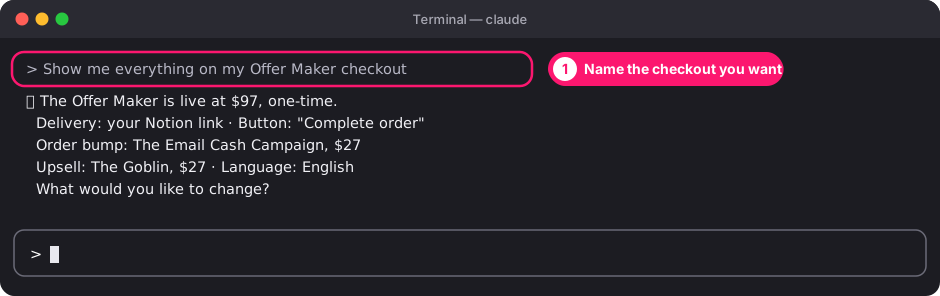
Claude reads the whole checkout: price, wording, delivery link, order bump, upsell, thank-you page and whether it's live. Seeing it first means your next request can be short.
2. Say what to change
Plain words are fine, and you can ask for several things at once:
- "Lower the price to $79 and make the button say Get instant access."
- "Rewrite the order bump so it's about saving time, and make it $37."
- "Hide the upsell for now."
- "Change the thank-you heading to Welcome in!"
- "Put this checkout in Spanish."
- "Give the first 10 buyers an early-bird price of $49."
3. Confirm anything that affects money or access
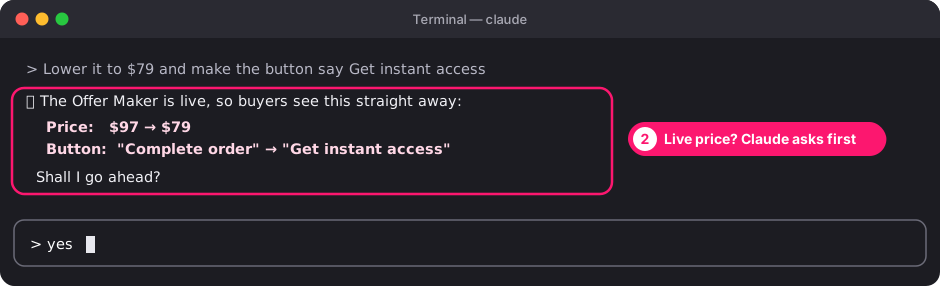
On a live checkout, buyers see changes straight away. So before Claude changes a live checkout's price, currency, billing or delivery link, it repeats the exact change back to you and waits for a yes. Wording and design changes go straight through.
4. Read what changed
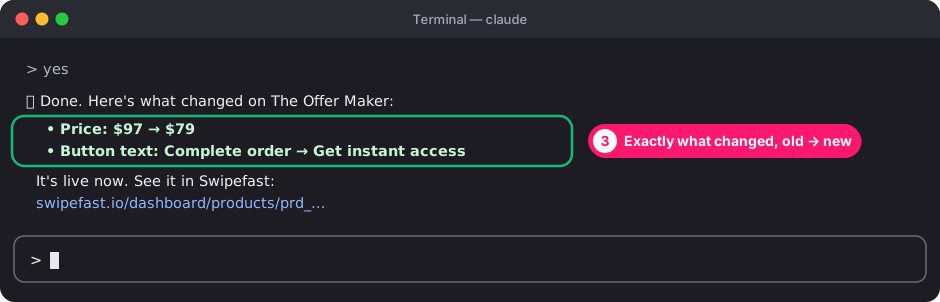
After every change, Claude tells you exactly what changed, with the old and new value side by side, for example "Price: $97 → $79". If it reports nothing changed, the checkout already said that.
5. Check it in Swipefast
Claude gives you a link to the checkout in your dashboard. Open it to see the change. A draft stays a draft until you press Publish. A live checkout is already updated for buyers.
If something doesn't work
- Claude says the change isn't allowed: it's the same rule the dashboard enforces, and Claude passes on the reason, for example "The early-bird price needs to be lower than the regular price."
- Claude can't find the checkout: ask it to list your checkouts, then use the exact name.
- Claude can't see Swipefast at all: type /mcp in Claude Code. If swipefast isn't listed as connected, run through the connect guide again.
Questions people ask before choosing
Can Claude edit a live checkout?
Yes. Anything you can change in the dashboard editor, Claude can change, draft or live. Live changes reach buyers straight away, so Claude confirms price, currency, billing and delivery changes with you first.
Can Claude publish or unpublish a checkout?
No. Publishing, unpublishing and refunds stay your click, in Swipefast.
Can I undo a change Claude made?
Yes. Claude tells you the old and new value for every change, so you can ask it to put the old one back, or change it yourself in the editor. Every change is also recorded on your account.
Does this work on the Claude website?
Not yet. It works in Claude Code, in Terminal or the Code tab of the Claude desktop app.