How to test your checkout before you launch
Test your checkout before launch: run practice orders in test mode, then make one small real purchase and refund it, so you know every step works.
Test in two rounds. Test mode shows you the buyer's path without money moving. One small real purchase then proves that cards, emails and delivery all work.
Round 1: practice orders in test mode
If you haven't connected a payment provider yet, you're already in test mode. If Stripe is connected, turn it on yourself.
- 1. Open Settings. In the Payments card, click Turn on test mode.
- 2. Check the top of your dashboard. It should say Test mode.
- 3. Publish your checkout, then click Open checkout. A draft's link shows a 404, so it has to be published to test.
- 4. The checkout shows a banner saying no payment will be taken. Buy using any card number.
- 5. To see what a declined card looks like, use a card number ending in 0000.
- 6. Try the order bump. If you have an upsell, test both Yes and No thanks.
- 7. Check the thank-you page and click the access link.
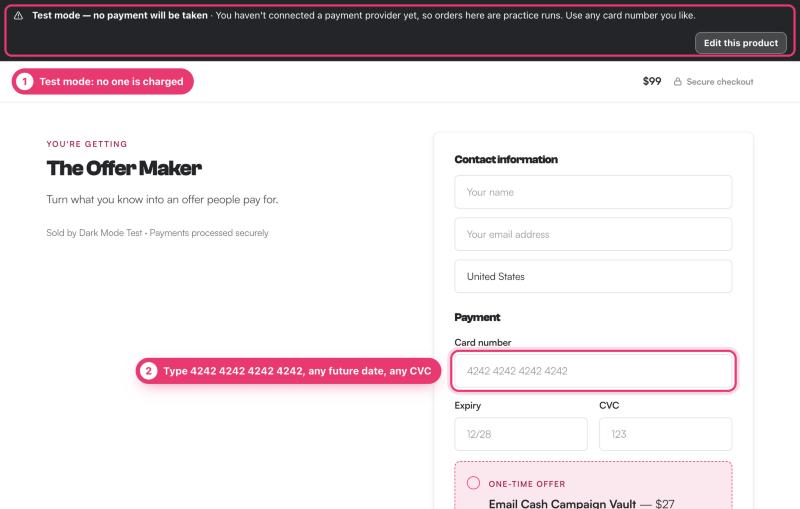
Test orders are kept out of your numbers. To see them, open Sales and click the Show test orders button, which also shows how many you have.
Round 2: one real purchase
- 1. Open Settings. In the Payments card, click Turn off test mode, then Yes, accept real payments.
- 2. Open your live checkout and buy it with your own card.
- 3. Check that the receipt email arrives and its access link works. Open the link in a private browser window, like a buyer would.
- 4. Check that the New sale email arrives at your account email.
- 5. Check that the order shows under Sales, and that the payment shows in Stripe.
- 6. Refund it. In Sales, click Refund on the order and confirm.
If you'd rather not charge yourself the full price, click Duplicate on the checkout's overview page. Set the copy's price to a small amount such as $1, publish the copy, and test that instead. Unpublish it when you're done.
Stripe normally keeps its processing fee on a refunded payment, so a real test costs a little. It's worth it to know your launch works.
A quick launch checklist
- The top of your dashboard says Live mode.
- Every access link opens the right place from a private window.
- Your business name and logo look right on the receipt.
- Your upsell wording mentions that it's a separate charge.
- You have the buyer link ready to share.
Questions people ask before choosing
Will test orders mess up my numbers?
No. Test orders are tagged when they happen and never count towards your numbers, even after you go live.
Why didn't I get a receipt for my test order?
Test mode never sends receipts or New sale emails. Use Email me a test receipt, or make one real purchase.
Can I test a draft checkout?
You can see it with Preview in editor, but its public link shows a 404 until you publish. Publish it while test mode is on to run practice orders.
Is it OK to buy from myself?
Yes. Buy with your own card, check everything, then refund the order from Sales.