How to create your first product and checkout
Create your first Swipefast product: set a name, price and currency, choose how buyers get their purchase, then publish the checkout so the link works.
In Swipefast, one product is one checkout. You need an active Swipefast plan to create one. If the sidebar says Activate your account, start your plan first.
Create the checkout
- 1. In the sidebar, open Checkouts and click New checkout.
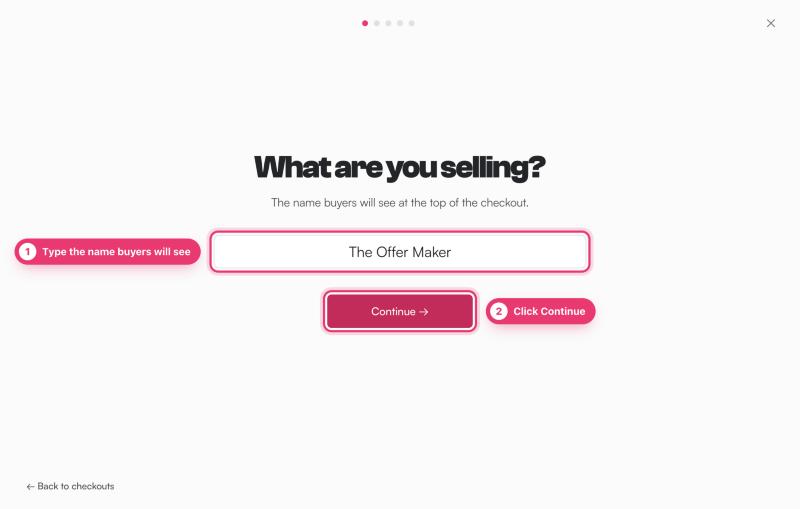
- 2. What are you selling? Type the name buyers will see, then click Continue.
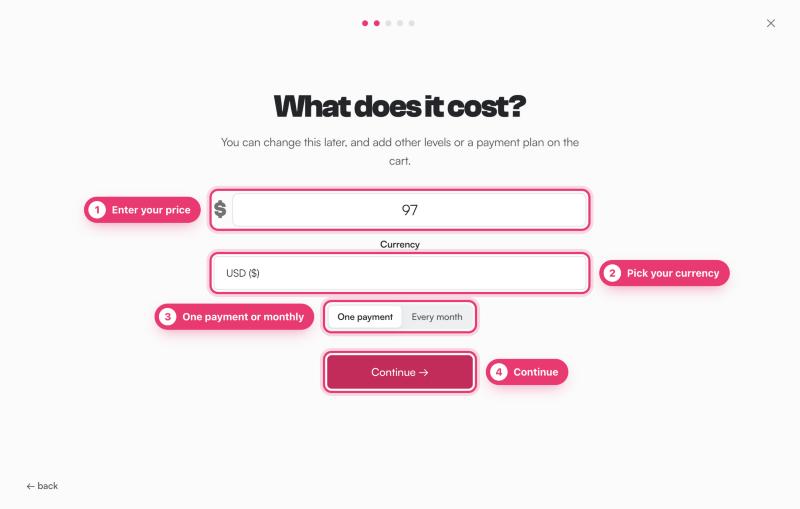
- 3. What does it cost? Enter the price and pick a Currency. Choose One payment, or Every month for a subscription and then Monthly or Yearly.
- 4. One line about it. Add a short description, or skip it and write it later.
- 5. Pick your link. This is the address buyers open. Keep it short.
- 6. Check the summary and click Create checkout. The checkout editor opens.
Set up delivery in the editor
The editor shows your real checkout. Click any part of it and its settings open on the right. Until you set up delivery, the Checkout step shows a Needs setup tag.
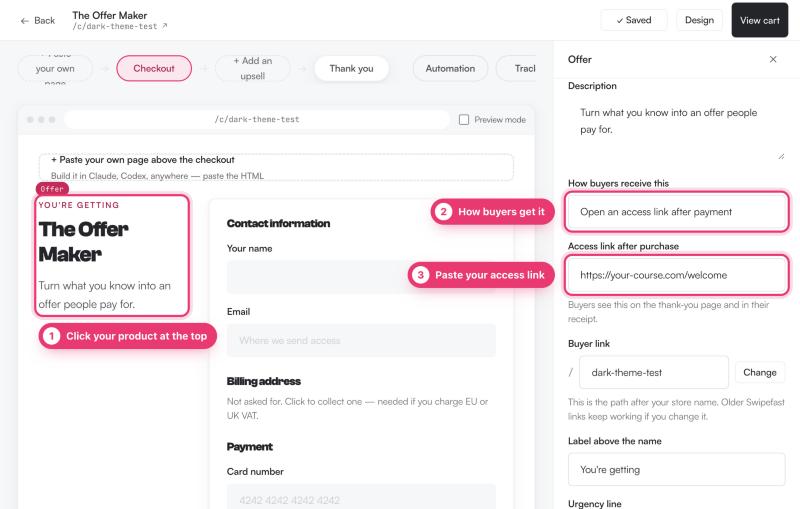
- 1. Click the Offer block at the top of the checkout.
- 2. Under How buyers receive this, choose Open an access link after payment, or No link needed. I deliver it myself.
- 3. If you chose a link, paste it into Access link after purchase. It must be a full link starting with https://.
Our delivery guide covers what buyers receive in more detail.
Make it yours
- What buyers receive: one item per line, shown as ticked items beside your offer.
- Guarantee: a heading and wording. Clear both to remove the box.
- Total and button: the button wording, price, currency, and how it bills.
- Design, in the top bar: font style, checkout and button colour, and button weight.
- + Paste your own page: optional HTML that sits above the checkout on the same link.
Changes save on their own. The top bar shows Saved when everything is kept. Click Preview in editor to see the checkout the way a buyer would.
Publish it
New checkouts start as drafts, and a draft's public link shows a 404. To publish:
- 1. Click Back in the editor to open the checkout's overview page.
- 2. Read the Ready to share? card. Anything marked with a circle still needs doing.
- 3. Click Publish checkout.
- 4. Use Copy buyer link or Open checkout to get the address you share.
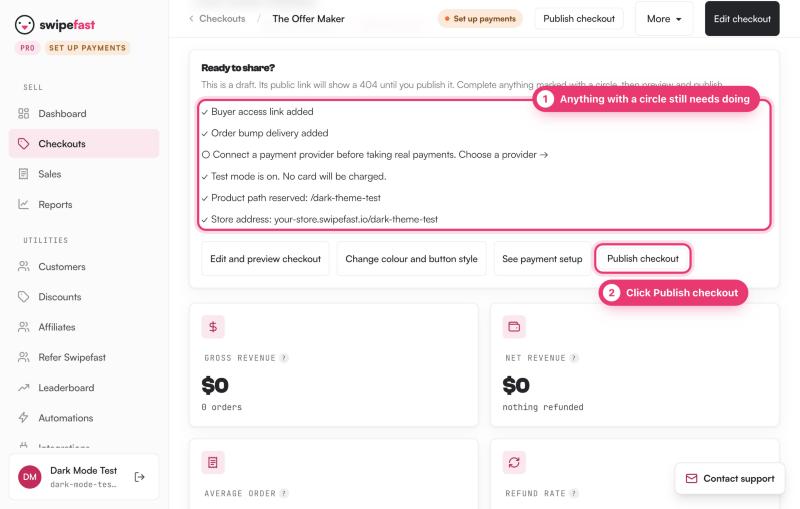
If no payment provider is connected yet, the checkout still publishes, but as a practice checkout. Buyers see a test mode banner and no card is charged.
To take a checkout down, click Unpublish. Its links stop working, and it stays as a draft with your orders and stats.
Questions people ask before choosing
Why won't my checkout publish?
Usually a store name or a delivery link is missing. Choose your store name in Profile & branding. The main product needs an access link, or No link needed selected, and every order bump and upsell needs its own access link.
Can I change the price later?
Yes. Click the Total and button block and edit Price. People already subscribed keep the price they signed up at.
Can I sell in a different currency?
Pick the currency when you create the checkout. To change it later, unpublish the checkout first. If it already has orders, use Duplicate and set the new currency on the copy.
What do buyers fill in?
Their name, email and country, then their card. A billing address is only asked for if you turn it on, or if you use Stripe Tax.