How to put your checkout on your own domain
Run your Swipefast checkouts on your own domain, at checkout.your-domain.com. Type your domain, add one DNS record, and it usually goes live in minutes.
A buyer who clicks from your email to checkout.your-domain.com never leaves your brand. It looks like your business because it is your business, and that small bit of trust matters most at the moment they're deciding whether to pay.
Your swipefast.io links keep working after you switch, so nothing you've already shared breaks.
What you need
- Swipefast Pro, with your store name chosen and saved under Profile & branding.
- A domain you own, and access to wherever you manage its DNS. That's usually where you bought it, like GoDaddy, Namecheap or Squarespace, or Cloudflare.
- Nothing on your website changes. Your checkouts get their own address, checkout.your-domain.com, and your-domain.com stays with your site.
1. Connect the domain in Swipefast
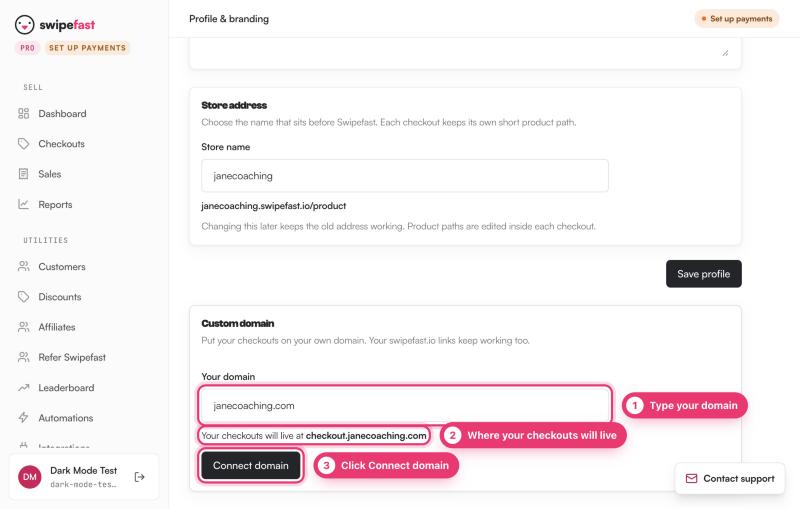
- 1. In the sidebar, open Profile & branding.
- 2. Scroll to Custom domain.
- 3. Type your domain, like your-domain.com. Swipefast shows you where your checkouts will live: checkout.your-domain.com.
- 4. Click Connect domain.
Swipefast shows you one DNS record to add. Keep that page open.
2. Add the DNS record
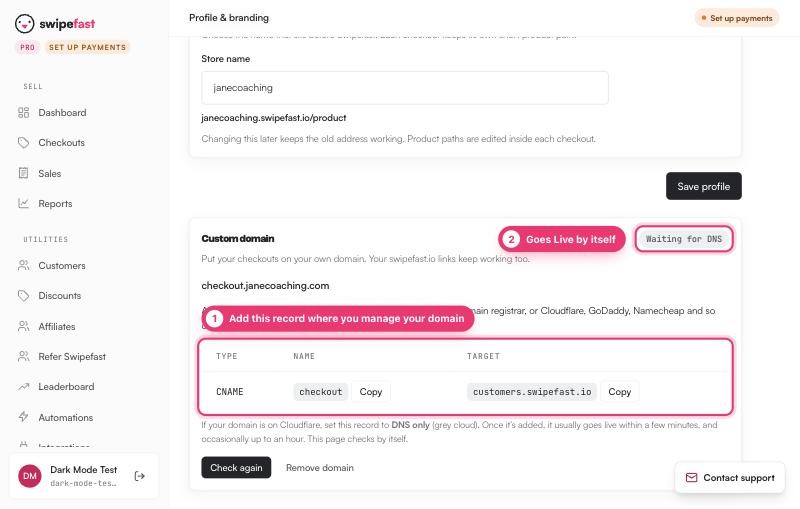
Where you manage your domain, add a new record with these details. Swipefast shows them to you with Copy buttons.
| Field | What to enter |
|---|---|
| Type | CNAME |
| Name (sometimes called Host) | checkout |
| Target (sometimes called Value or Points to) | customers.swipefast.io |
| TTL | Leave it on the default |
3. Wait for it to go live
Back in Swipefast, the Custom domain card checks by itself. It moves from Waiting for DNS to Securing, then Live. That usually takes a few minutes and occasionally up to an hour. Your padlock (SSL) is set up for you, free.
Once it says Live, the Open buttons and share links in your dashboard use your domain, and so do the reminder emails sent to buyers who didn't finish checking out.
If it's stuck on Waiting for DNS
- Check the Name. Most providers want only checkout, not checkout.your-domain.com. They add your domain for you, so the full name would be doubled.
- Check the Target is exactly customers.swipefast.io, with nothing after it.
- Make sure there isn't another record with the same name, like an old A record. Delete that one first.
- On Cloudflare, make sure the cloud is grey (DNS only).
- DNS changes can take up to an hour to spread. Click Check again after a while.
Still stuck? Click Remove domain, check the record, and connect it again. Or email support with a screenshot of your DNS record and we'll take a look.
Questions people ask before choosing
Why checkout.your-domain.com and not your-domain.com?
Your main address runs your website, and it can't point at two places at once. So your checkouts get their own address on your domain, checkout.your-domain.com, and your site stays where it is. Prefer another word, like buy.your-domain.com? Type the whole thing and Swipefast uses it as it is.
Does it cost extra?
No. It's included in Swipefast Pro, and so is the padlock (SSL).
Will my old swipefast.io links stop working?
No. They keep working, so links in old emails and posts still reach your checkout.
Can I connect more than one domain?
One per account for now. To change it, click Remove domain and connect the new one.