How to connect Swipefast to Claude Code, step by step
Connect Swipefast to Claude Code in about five minutes, then ask about your sales or have Claude build a whole checkout as a draft. No coding needed.
Once Swipefast is connected, you can talk to your checkout. Ask which offer sold best this month, where your buyers came from, or have Claude set up a whole new checkout, with an order bump and upsell, while you describe it in plain words.
Claude can read your numbers and build drafts. It can't publish a checkout, charge anyone, or change a live checkout. Going live is always your click, in Swipefast.
What you need
- A Swipefast account. Building checkouts from Claude needs an active subscription.
- A Claude account on Pro, Max, Team or Enterprise, or a Claude Console account.
- A Mac, Windows or Linux computer. You'll paste two or three commands into Terminal. You don't need to know how to code.
1. Install Claude Code
Skip this if you already use Claude Code. On a Mac, open Terminal: press Command and Space, type Terminal, and press Enter. Paste this and press Enter:
curl -fsSL https://claude.ai/install.sh | bashOn Windows, open PowerShell and paste this instead:
irm https://claude.ai/install.ps1 | iexWhen it finishes, close Terminal and open a new window. Type claude --version and press Enter. If you see a version number, it worked.
2. Log in to Claude
- 1. In Terminal, type claude and press Enter.
- 2. Follow the prompts. Your browser opens so you can sign in to your Claude account.
- 3. Once you're in, type /exit and press Enter to close Claude Code for now.
3. Copy your Swipefast command
- 1. In Swipefast, click Settings in the sidebar.
- 2. Find Your connection key. If there's no key yet, click Create a key.
- 3. Under Connect Claude Code, click Copy Claude Code command. Your key is already inside it.
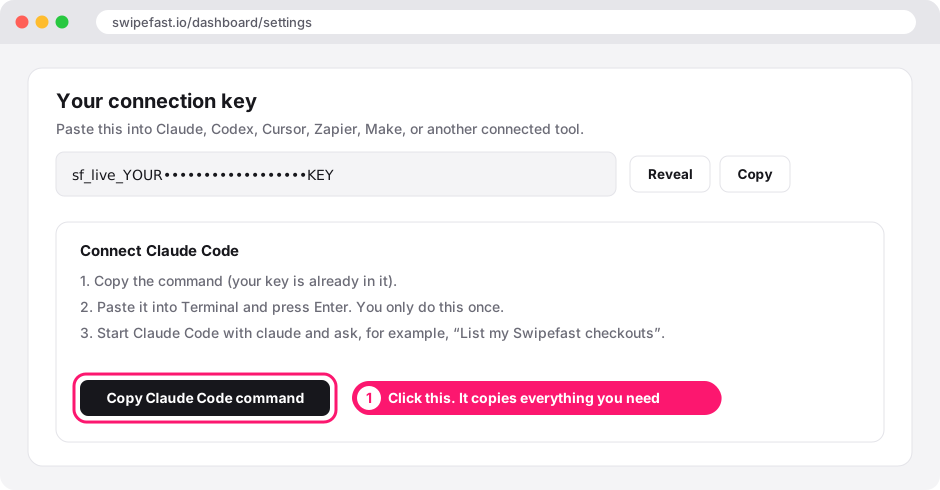
The command looks like this, with your own key at the end:
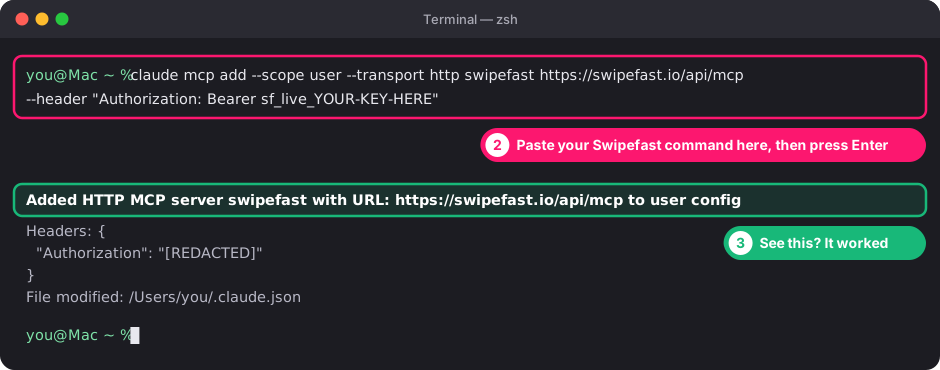
claude mcp add --scope user --transport http swipefast https://swipefast.io/api/mcp --header "Authorization: Bearer sf_live_…"4. Paste it into Terminal
Open Terminal (on a Mac, press Command and Space, type Terminal, press Enter). Paste the command, not inside Claude Code but at the normal prompt, and press Enter. You only do this once: it works in every folder from now on.
5. Check it's connected
In the same Terminal window, type this and press Enter:
claude mcp list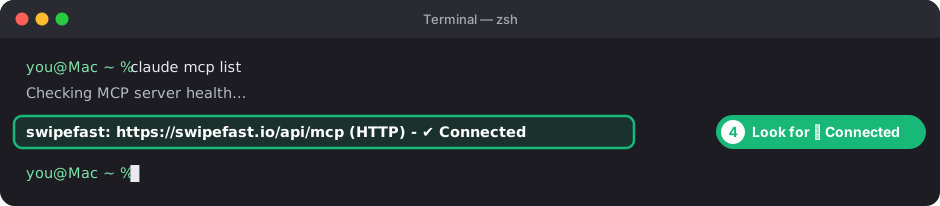
Inside Claude Code, typing /mcp shows the same list. If a line says Needs authentication, check it's not swipefast: that's a different tool asking you to sign in.
6. Ask it something
Type claude and press Enter to start Claude Code, or open the Code tab in the Claude desktop app. Then just ask in plain words. You don't need to mention Swipefast; Claude uses it when your question needs it.
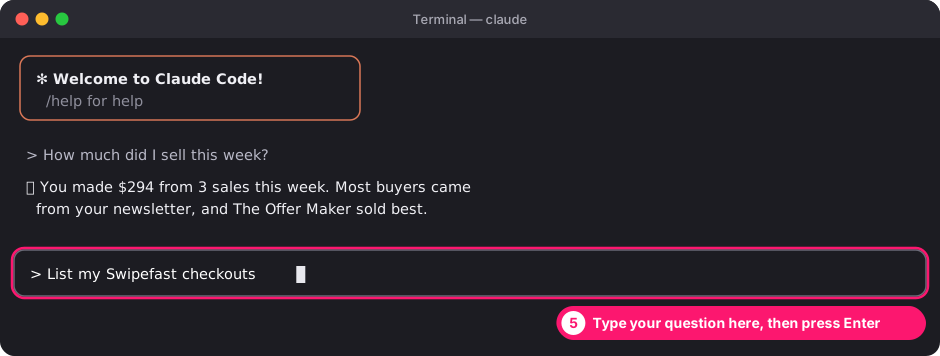
- "List my Swipefast checkouts."
- "How much did I sell this week, and where did the buyers come from?"
- "Make a 20% launch coupon, capped at 50 uses, ending Friday."
7. Build a checkout from a brief
Type /mcp__swipefast__setup_checkout and press Enter, then describe what you sell. Claude asks for anything it's missing, like the price or where buyers get the product, and never makes those up. Then it builds the checkout, and any order bump, upsell and sales page you asked for, as a draft.
It sends you a link to the draft. Open it, check everything, and press Publish when you're happy. Already have a checkout? /mcp__swipefast__design_sales_page designs the page above it.
If something doesn't work
- Terminal says command not found: claude. Close Terminal, open a new window, and try again. The installer only takes effect in new windows.
- Swipefast isn't in the claude mcp list output. You may have added it with an older command that only works in one folder. Remove it and add it again: run the command below, then paste your Swipefast command again.
- Swipefast shows failed, or Claude says the key is invalid. The key was probably replaced in Settings. Remove it as below, copy a fresh command from Settings, and paste it again.
claude mcp remove swipefast --scope userQuestions people ask before choosing
Can I connect Swipefast to Claude on the web or the desktop app?
Not yet. Those ask for a sign-in flow that Swipefast doesn't have yet. For now, Claude Code, Cursor and other tools that accept a key in the request header all work.
Can Claude publish a checkout or take a payment?
No. Claude can read your sales, build draft checkouts with bumps and upsells, and create coupons. Publishing, charging and changing a live checkout stay with you, in Swipefast.
Does it see test sales?
No. Test mode orders are left out of every number Claude sees, so your totals match your real sales.
How do I disconnect it?
Run claude mcp remove swipefast --scope user in Terminal. To cut off every tool using your key at once, click Create a new key in Swipefast Settings.