How to add a one-click upsell and how the charges appear
Show one extra offer on its own page after payment. See what happens when the buyer says yes or no, and how the upsell charge appears on their card.
A one-click upsell is an offer shown after the buyer pays. They don't type their card again. One click adds it, and one click skips it.
Add an upsell
- 1. Open Checkouts and click Edit on your checkout.
- 2. In the row of steps at the top, click + Add an upsell.
- 3. Optional: paste HTML above the offer if you want a longer pitch on that page.
- 4. Write a Headline and the Wording.
- 5. Set the Price.
- 6. Paste the Access link after purchase. This is required.
- 7. Click Add upsell. It doesn't show to buyers until you do.
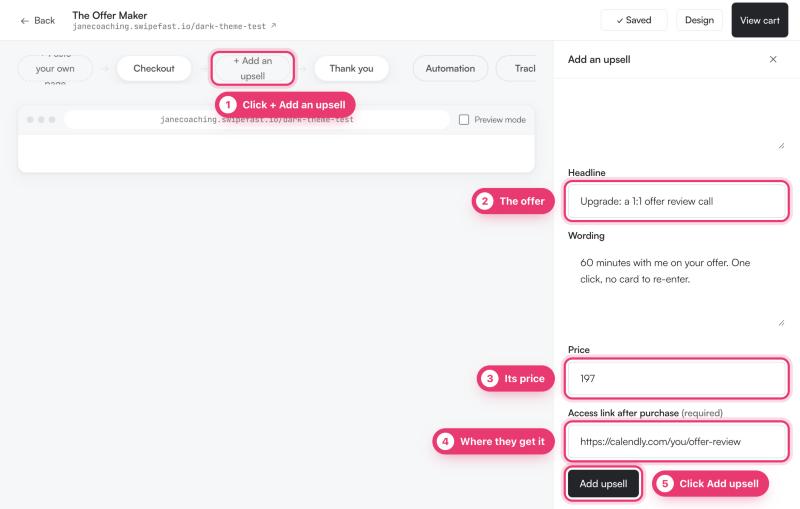
Each checkout has one upsell. To change it, click the Upsell step and then click the offer. To take it off, click Remove the upsell.
What the buyer sees
- They pay on your checkout as usual.
- A new page opens. Its address ends in /upsell. It shows your offer with two buttons: Yes, add it for the price, and No thanks, complete my order without it.
- Whatever they choose, they land on the thank-you page. Its address ends in /thank-you.
How the charges work
When the buyer pays, their card is held for the main order while they decide. Nothing extra is charged until they answer.
- No thanks: the order completes straight away at the amount they already agreed to.
- Closing the page counts as no thanks. The order still completes straight away.
- Yes: the upsell is charged as a second, separate charge on the same card. The buyer sees two lines on their card statement, one for the main order and one for the upsell.
- If the card declines the upsell, the original order still goes through.
The receipt email and your New sale email go out once the order completes. If they said yes, both emails include the upsell, and the receipt includes its access link.
Refunds and results
If you refund an order from Sales, Swipefast also refunds the separate upsell charge. On the checkout's overview page, Upsell take rate shows how many buyers said yes.
Questions people ask before choosing
Is the upsell really one click?
For card payments, yes. The buyer clicks Yes and the upsell is charged to the card they just used. They don't type anything again.
Why does the buyer see two charges?
The upsell is charged separately from the main order, on the same card. So their statement shows two lines.
What happens if the buyer paid with PayPal?
PayPal works differently. Depending on your PayPal account, the buyer may add the upsell in one tap, or approve a separate PayPal payment. Once PayPal is connected, its panel in Integrations explains the setting that allows one-tap upsells.
Can I add more than one upsell?
No. Each checkout has one upsell. Keep it closely tied to what the buyer just bought.